eSIM Installation Guide
How to Install and Activate Your eSIM
3 steps to use an eSIM
Check device compatibility
Install your eSIM
Activate your eSIM


Check that your eSIM is compatible
To check if your phone is eSIM compatible, check if there is an option to 'Add an eSIM' on your device. If you have the option to 'Add an eSIM', your device is eSIM-compatible.
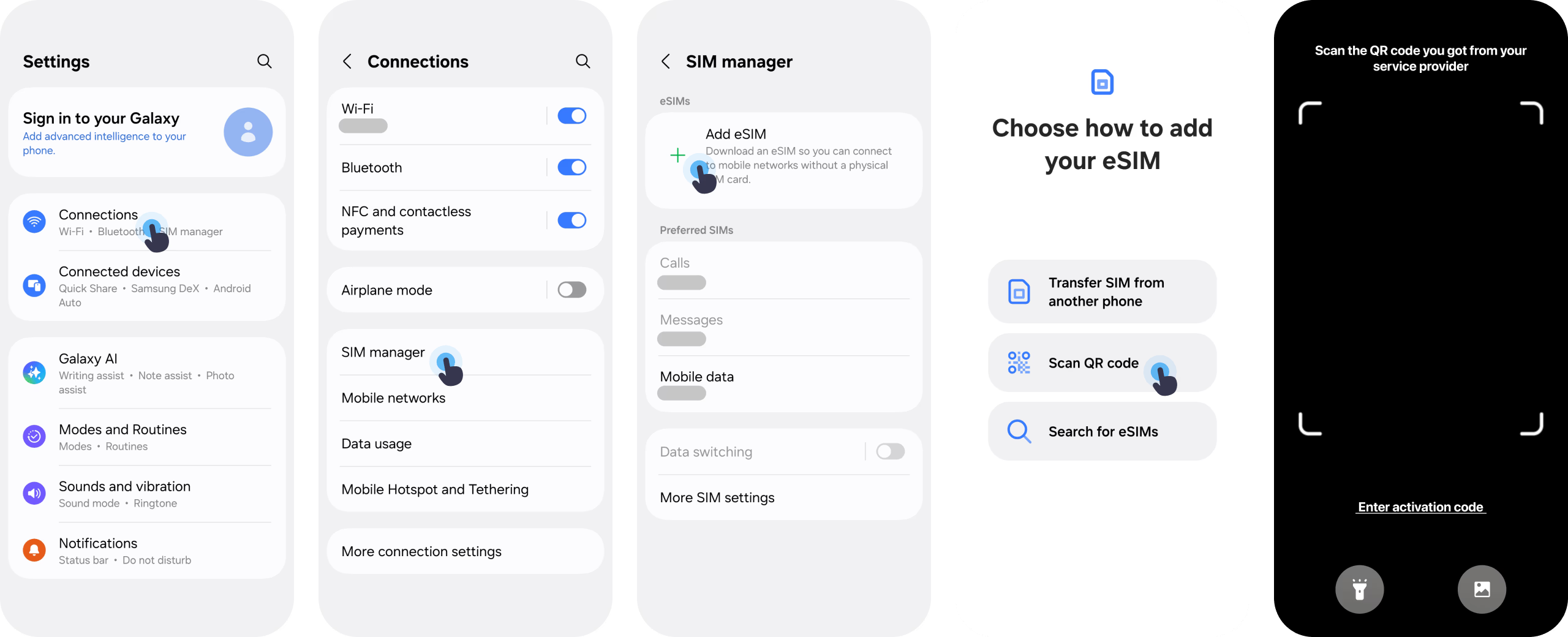
Android:
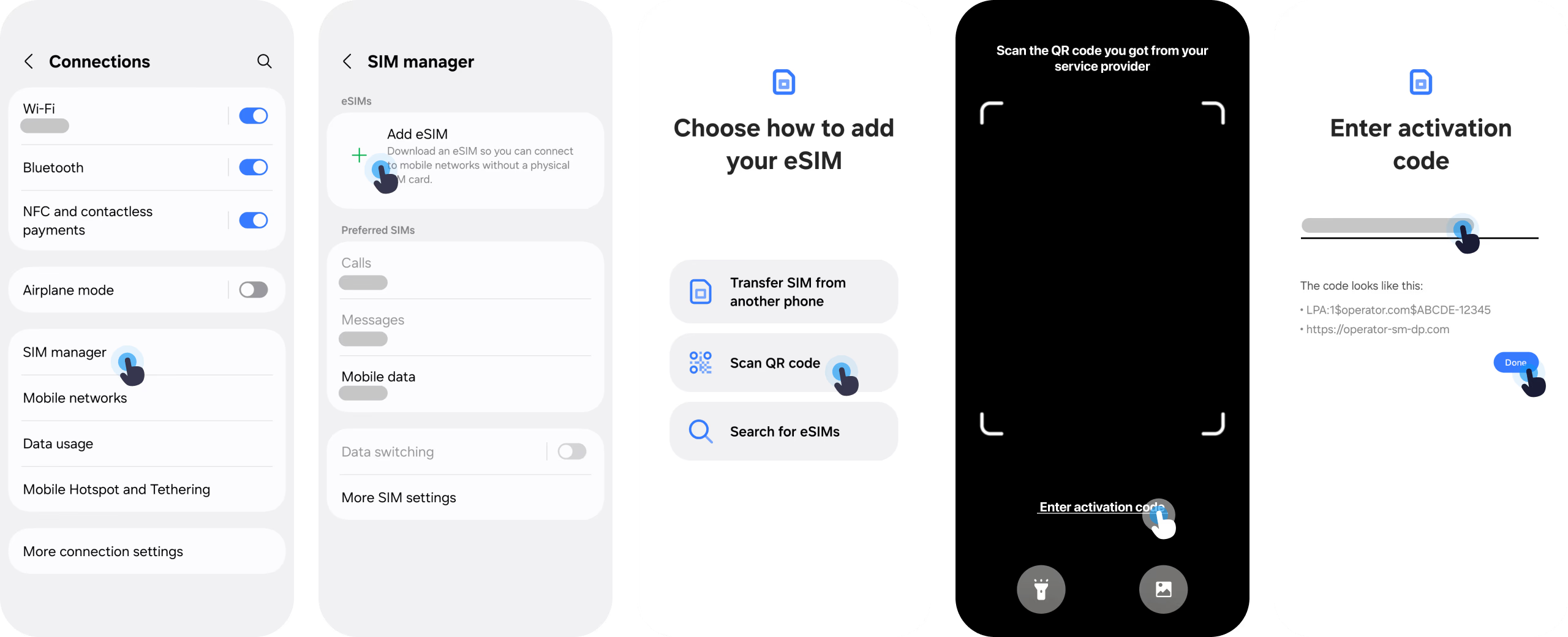
- Go to Settings > SIM Manager
- Look for option to 'Add an eSIM'
iOS:
- Go to Network / Cellular
- Look for option to 'Add an eSIM'
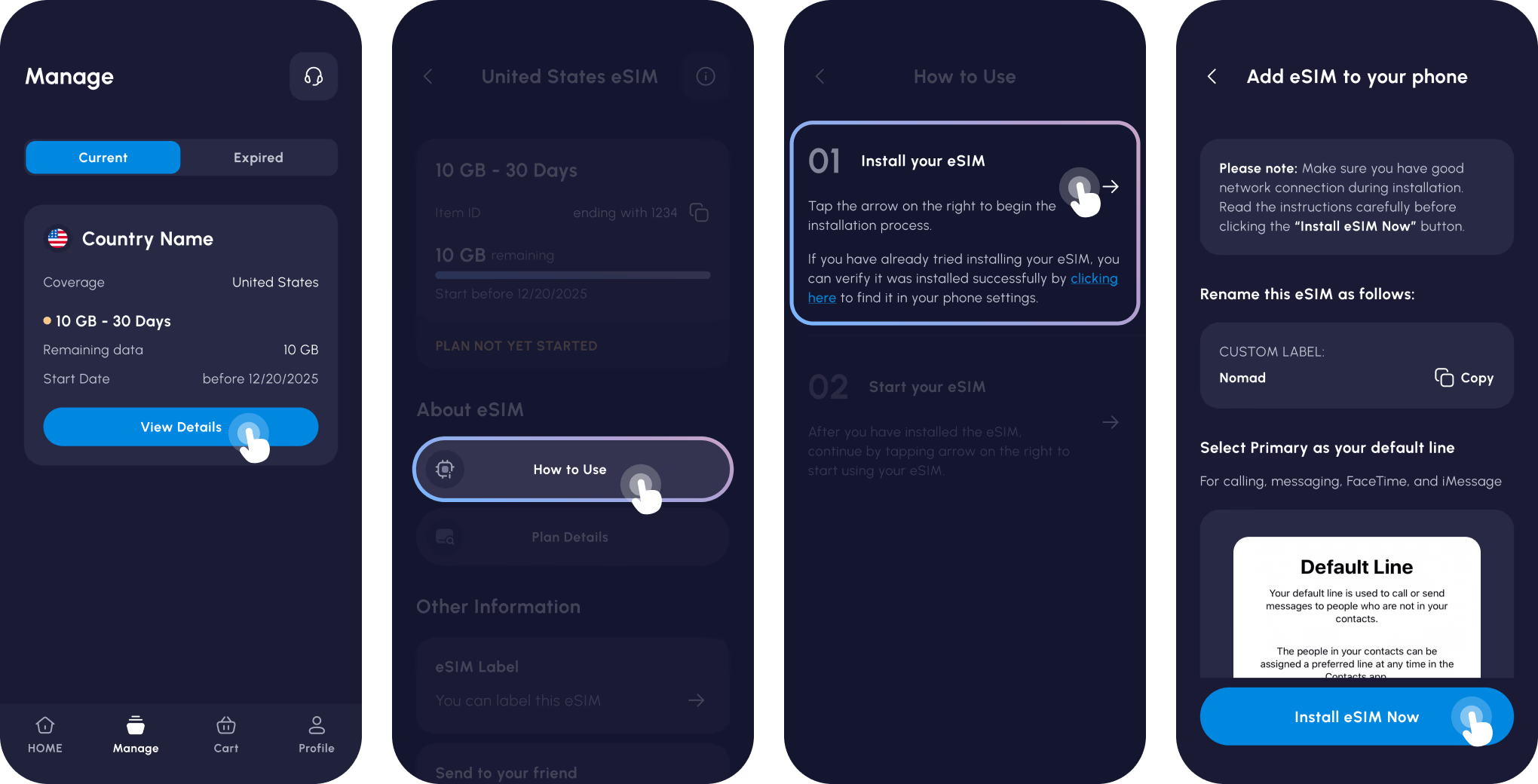
Method 1: Automatic Installation from Nomad App.
If you have purchased a Nomad eSIM using an eSIM-compatible device, you will be prompted to install your eSIM upon successful purchase of your eSIM. Simply select the option 'Add automatically' and follow the on-screen instructions to install your eSIM.
We recommend installing the eSIM soon after purchasing the plan, to make sure you can start using the data when you need it. However, if you do not want to install it yet, you can easily go back to the app to install your eSIM at a later time.
1Go to the Manage eSIM page in your Nomad iOS or Android app
2Select the eSIM you want to install
3Select 'How to Use'
4Choose the option to 'Add automatically'
5Select 'Install eSIM Now‘
6Follow the on-screen instructions


Installing your eSIM maunally
If you are unable to install your eSIM automatically, or if you had purchased your eSIM on a separate device, you can still install your eSIM manually.
There are a few ways to install your eSIM Data Plan, and Nomad has tried to streamline the process as much as possible. As with all eSIM providers - not just Nomad - there are 2 options to install your eSIM:
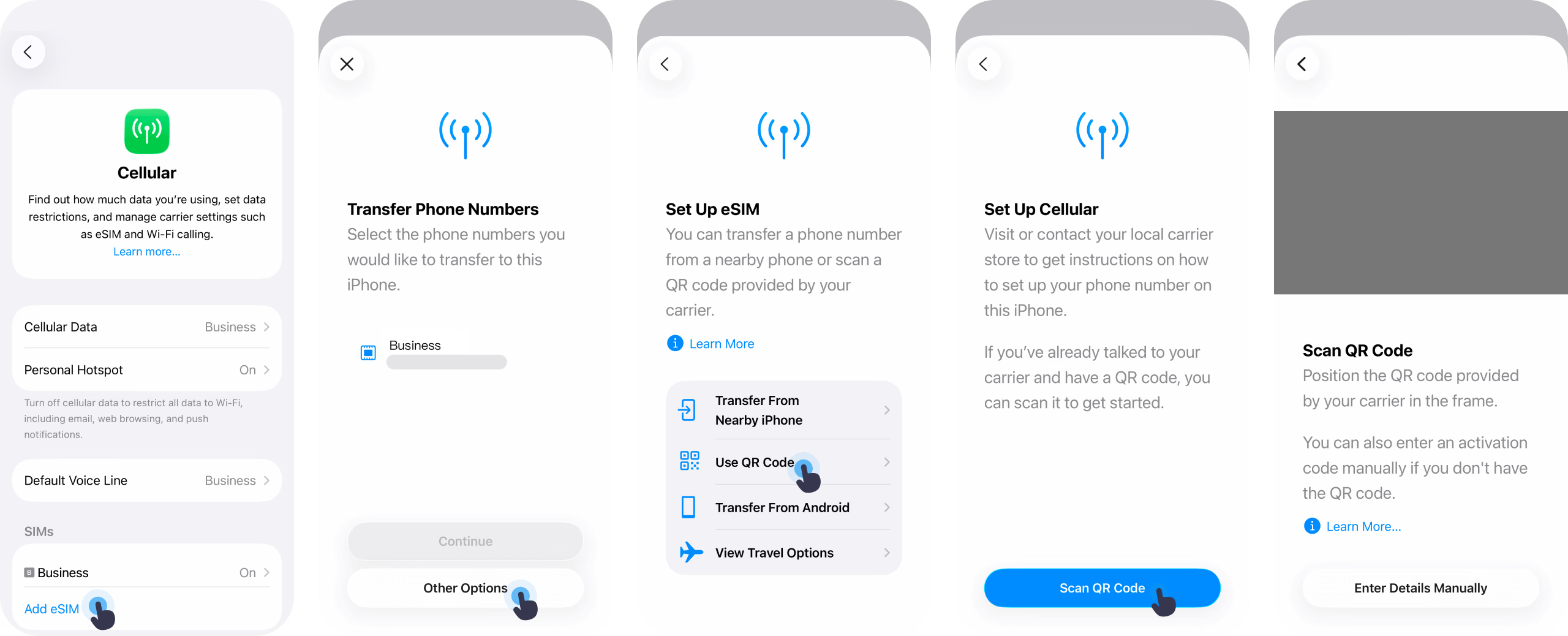
Method 2: Manual eSIM Installation via QR Code
The recommended way to install your eSIM is through the QR code we provided via in-app instruction and email (if you’re not on Nomad, most providers will email you the instructions).
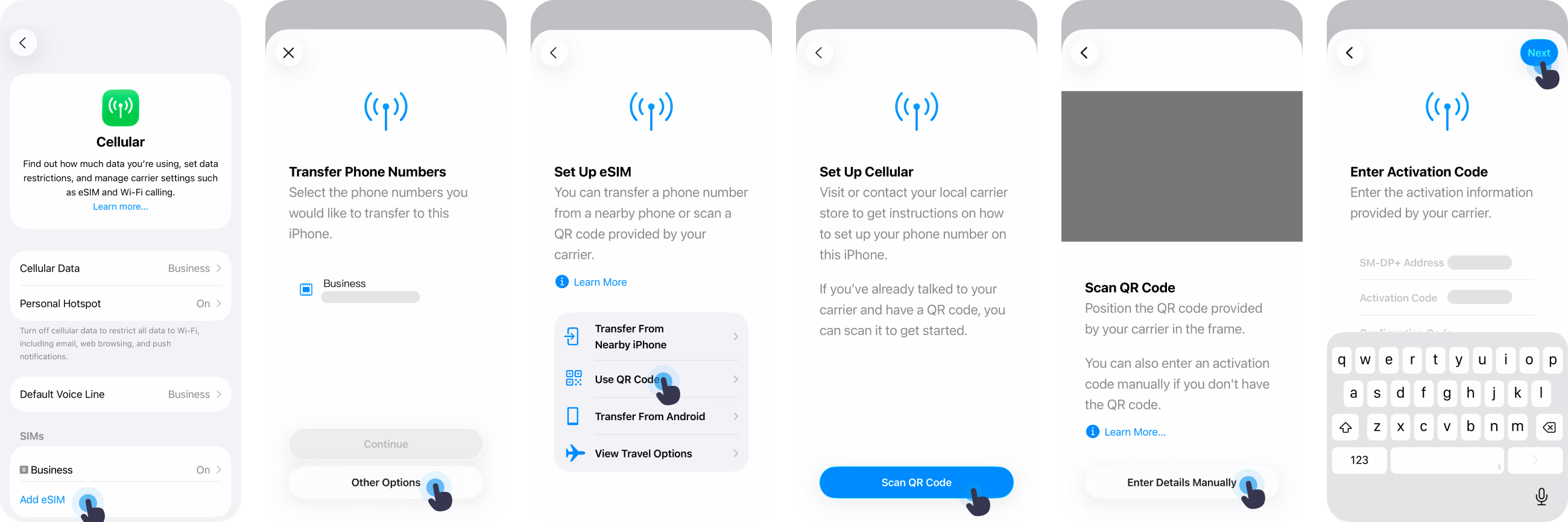
Method 3: Manual eSIM Installation via Manual Input
Though not recommended, you may prefer to install your eSIM through manual input for various reasons. Manually enter the details of your eSIM by following the steps below.
Check this step-by-step guide for detailed instructions for manual installation of your eSIM
Activating your eSIM
To start using your data, your eSIM plan will need to be activated. Find out more about the difference between eSIM installation and eSIM activation.

01 Arrive to destination

02 Turn on your eSIM
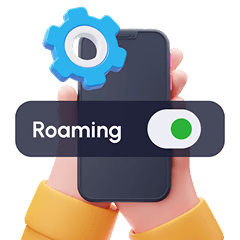
03 Turn on Data Roaming
Some eSIMs may require manual activation. Check your eSIM installation instructions for more information.
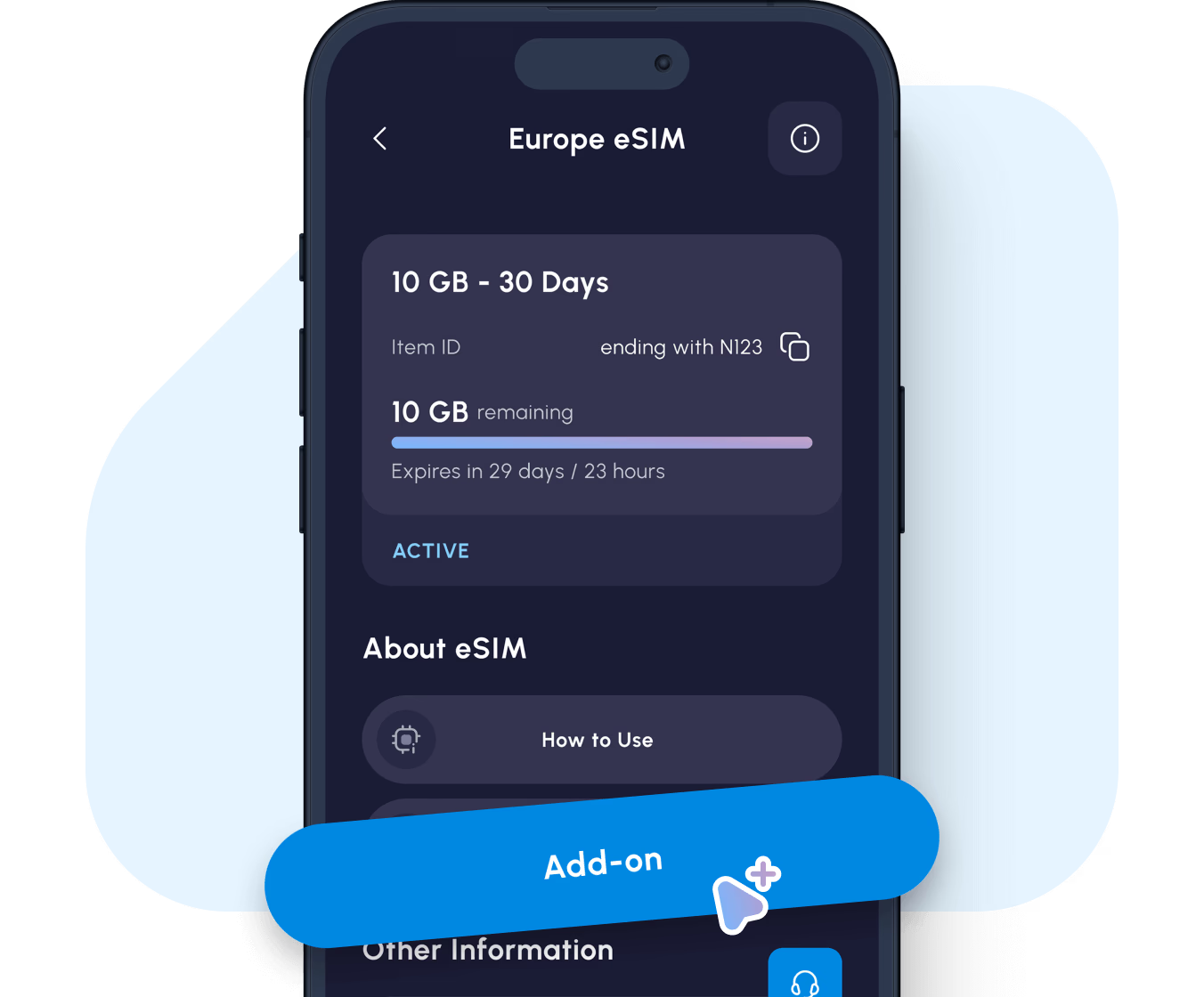
How to Add Data to Your eSIM.
Add more data instantly from the app or website without reinstalling.
If you already have an active eSIM installed, you can seamlessly add more data to it without the hassle of installing another eSIM.
Simply go to the Manage page in the Nomad app or the 'My eSIMs' page on the Nomad website, click 'Add more data', and enjoy connectivity without interruption.
Please note that add-ons can only be bought when your eSIM has not expired and when your current data plan is not used up. Make sure to add more data in advance.
The add-on data will automatically activate when data from your current plan is used up or when your current plan expires, whichever is earlier.
Add More DataFrequently Asked Questions
01
What if the QR code doesn’t work?
02
Should I install now or when I land?
03
Can I reinstall my eSIM if I delete it?
04
What happens if I switch phones?
05