eSIM, Device Compatibility
Samsung eSIM Compatibility: The Complete Guide for Travelers
Check if your Samsung phone is eSIM compatible and get instant connectivity with Nomad eSIM in over 200 destinations.
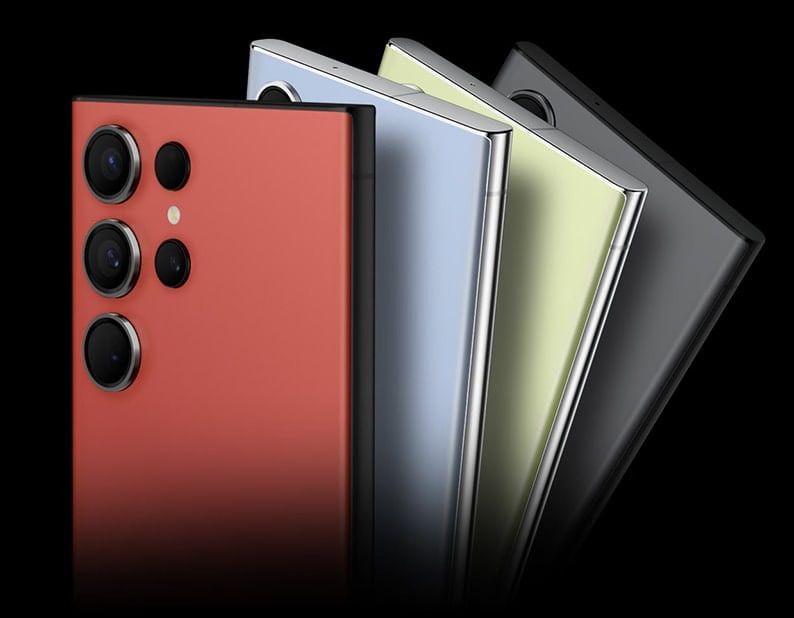
Samsung smartphones are some of the most popular travel companions in the world — powerful cameras, fast processors, reliable GPS, and now, widespread Samsung eSIM support. If your Samsung device is eSIM-compatible, you can install a Nomad eSIM in minutes and connect instantly the moment your plane lands.
No physical SIM swapping, no searching for local stores, and no roaming surprises.

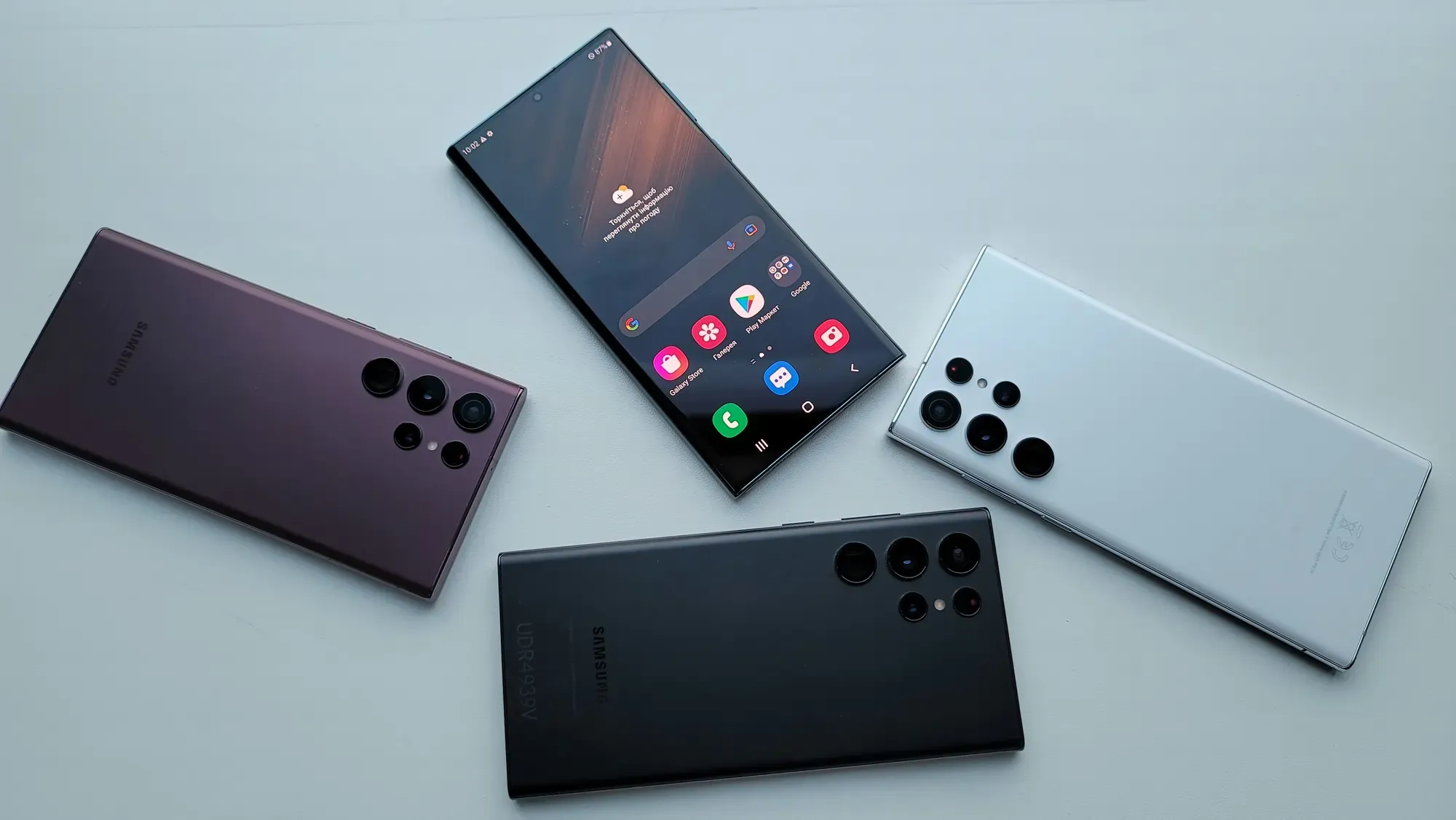
Samsung eSIM: What It Is and How It Works
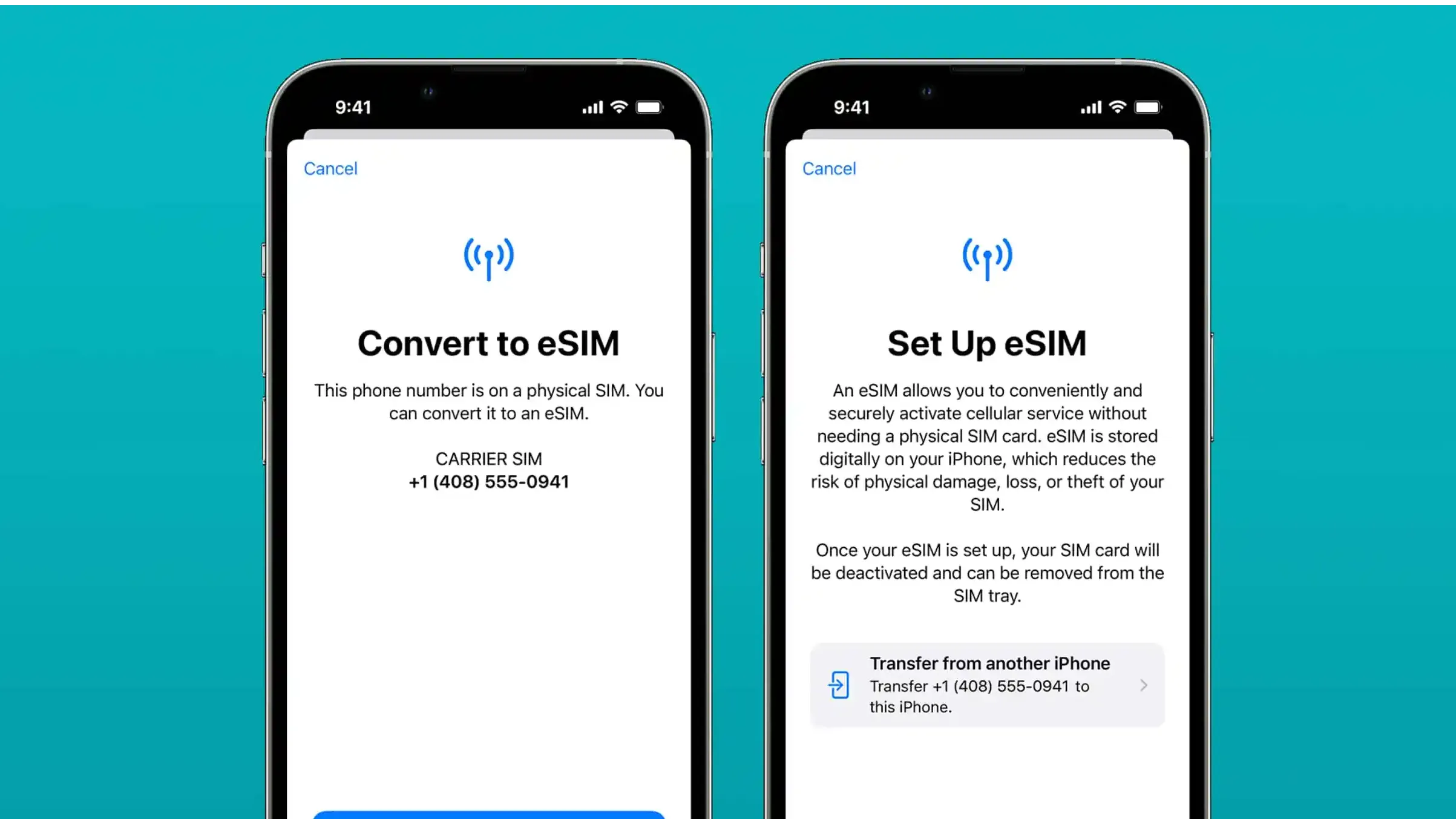
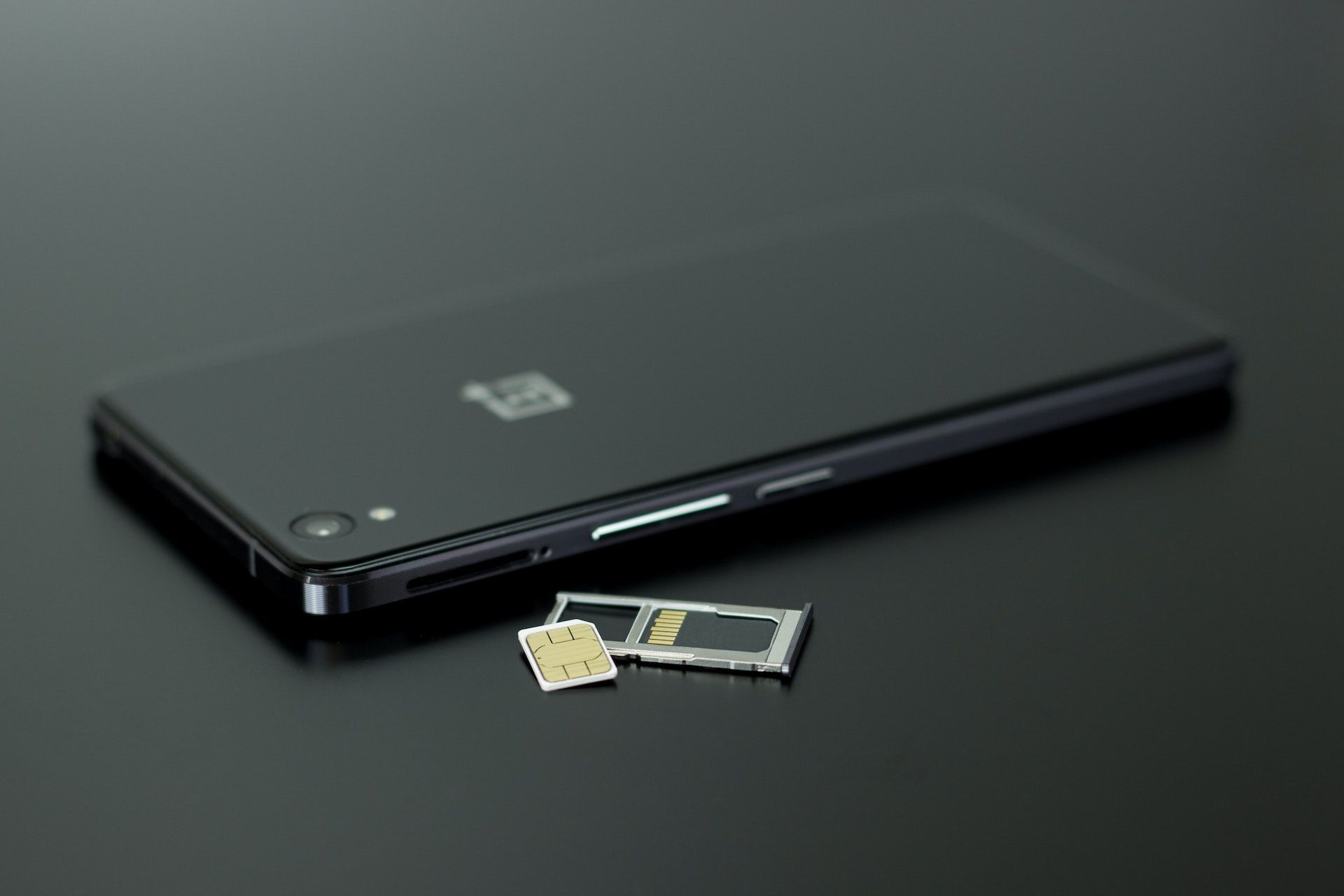
A Samsung eSIM (embedded SIM) is a digital SIM card built directly into your Samsung device. Instead of inserting a physical SIM, you activate your mobile service digitally using a QR code, activation code, or through the Samsung SIM Manager.
Most Samsung devices support dual SIM functionality — meaning you can:
- Keep your physical SIM (and your primary number) active
- Add a Nomad eSIM as your travel data plan
- Switch networks in seconds
- Travel across multiple countries without swapping SIM cards
If you’re new to how eSIM works, our guide on how eSIM works is a good place to start.
Samsung Phones That Support eSIM: Complete Compatibility List
To make things easier, Nomad eSIM has compiled a list of Samsung models that support eSIM. If your device appears there, it is likely compatible with Nomad eSIM. However, Samsung eSIM support is still region dependent. All Samsung phones sold in China, Hong Kong, and Taiwan do not support eSIM, even if the global version of the same model does.
Galaxy S Series (S24, S23, S22) eSIM Compatibility
- Galaxy S24, S24 Plus, S24 Ultra
- Galaxy S23, S23 Plus, S23 Ultra, S23 FE
- Galaxy S22, S22 Plus, S22 Ultra
Galaxy Z Fold Series eSIM Compatibility
- Galaxy Z Fold 5
- Galaxy Z Fold 4
- Galaxy Z Fold 3
Galaxy Z Flip Series eSIM Compatibility
- Galaxy Z Flip 5
- Galaxy Z Flip 4
- Galaxy Z Flip 3
Galaxy Note Series eSIM Compatibility
- Galaxy Note 20
- Galaxy Note 20 Ultra
Galaxy A Series eSIM Compatibility (Region Dependent)
- Galaxy A54 5G
Even though many Samsung phones now support eSIM, there are still versions that do not include the hardware. These models will not show the Add eSIM option in SIM Manager and cannot support the installation of eSIM. For a comprehensive list of Samsung devices that are eSIM compatible, check out Nomad eSIM’s Supported Devices list.
3 Simple Steps to Check if Your Samsung Phone Supports eSIM
Before installing a Nomad eSIM, confirm your device’s eSIM capability. Samsung support varies widely by model and region, so a quick check ensures smooth activation.
1. Look for the “Add eSIM” Option in Samsung SIM Manager
- Go to Settings
- Tap Connections
- Go to SIM Manager
- Check for Add eSIM or Add mobile plan
If this option appears, your device supports eSIM. If it does not appear, your phone may be a regional version without eSIM hardware.
2. Verify Your Samsung Model Number
- Go to Settings
- Select About Phone, and locate your Model Number.
Your phone model number tells you which regional version of the device you own, which is important since eSIM availability can vary by market.
3. Check Your Samsung Phone Specifications
You can confirm eSIM-compatibility by checking the model information included with your device.
- Locate the printed user manual or quick start guide that came with your phone box.
- Find the specifications section, usually near the back or in the connectivity chapter.
- Look for a line that lists SIM configuration, such as: Nano SIM + eSIM (this means your device supports eSIM) OR Nano SIM only (this means your device does not support eSIM)
- You can also check the model number printed on your device box and compare it against the typical Samsung model lines known to support eSIM.
Why Samsung’s eSIM Support Varies by Region and What That Means for You
Samsung releases different regional versions of the same phone model (e.g. Samsung Galaxy), and each one is tuned for the networks and requirements of the market it’s sold in. Because of this, eSIM support depends not just on the model name, but on the specific regional version of that model.
In regions like Europe, Samsung typically includes eSIM on models such as the Galaxy S22, S23, and S24 series. Meanwhile, the versions sold in China, Hong Kong, and Taiwan often ship with dual physical SIM slots only, meaning eSIM isn’t available at all. Some carrier-issued models in the United States and South Korea may also disable eSIM based on carrier policies at launch.
If your Samsung phone was purchased overseas, bought secondhand, or provided by a carrier, these regional differences can make eSIM support less obvious. It’s important to confirm which regional version of your Samsung model you have (via the CSC code) before you purchase an eSIM plan — ensuring your device supports eSIM and preventing activation issues when using a Nomad eSIM while traveling.
How To Set Up Nomad eSIM on Your Samsung Phone
Once you confirm that your Samsung phone supports eSIM, activating it is quick and simple with Nomad eSIM and Samsung’s SIM Manager.
1. Add a Nomad eSIM Through Samsung SIM Manager
The easiest option is to add your eSIM directly through Settings.
- Open Settings
- Tap Connections
- Select SIM Manager
- Choose Add eSIM
- Follow the on-screen instructions to download and activate your plan
This is the most direct method and works smoothly on most eSIM-supported Samsung phones.
2. Scan a QR Code to Install Samsung eSIM
Most travel eSIM providers, including Nomad eSIM, offer activation through a QR code.
- Open Settings
- Go to Connections
- Select SIM Manager
- Tap Add eSIM
- Choose Scan QR Code and scan the QR code provided in the Nomad eSIM app or email
- Complete the setup by selecting your preferred SIM for mobile data
If your QR code does not scan, you can install your Nomad eSIM using the activation details included with your plan. Here’s how:
- In Add eSIM, select Enter activation code
- Enter the SM-DP+ server address and the activation code provided by Nomad eSIM
- Complete installation following the on-screen prompts
This backup method is helpful if your camera cannot scan the QR code or if you prefer entering details manually.
3. Install Your eSIM Using the Nomad App
Nomad eSIM also allows you to install your eSIM directly from the app.
- Open the Nomad eSIM app
- Select your purchased plan
- Tap Install eSIM
- Follow the guided instructions
This method offers the smoothest setup experience, especially for travelers installing an eSIM right before a trip.


Why Samsung eSIM Is Perfect for Travel
Pairing your Samsung device with Nomad eSIM unlocks a smoother travel experience.
Seamless Connectivity When You Land
You can install your Nomad eSIM while still at home or even while in transit. Once you arrive at your destination, your Samsung phone will connect to a local partner network automatically, so you can start using data right away without visiting a store or swapping SIM cards.
Reliable Hotspot Sharing
Samsung phones often deliver stable hotspot performance, which is helpful for travelers who work remotely or need to share data with friends or family. An eSIM allows you to stay connected without relying on risky public Wi Fi or inconsistent hotel networks.
Multiple eSIM Profiles for Multi-Country Trips
Many Samsung models can store multiple eSIM profiles. This is ideal for multi-country itineraries because you can switch between different Nomad eSIM plans with just a few taps. It is a simple way to stay connected across borders without juggling physical SIM cards.
Frequently Asked Questions
Does my Samsung phone support eSIM?
Only certain Samsung models support eSIM. You need to check SIM Manager for the Add eSIM option or review Samsung’s official specifications.
Why doesn’t my Samsung device show Add eSIM?
Your Samsung phone may be a regional variant without eSIM hardware. This is common among models from China, Hong Kong, Taiwan, and some carrier versions from the United States or South Korea.
Do unlocked Samsung phones always support eSIM?
Not always. Even if your device is unlocked, it might still be a variant that does not contain eSIM hardware.
Can Samsung store multiple eSIM profiles?
Yes. Most Samsung phones that support eSIM can store several profiles, although only one can be active at a time.
Does dual SIM mean my Samsung phone can support eSIM?
No. Dual SIM on Samsung phones doesn’t always include eSIM. Some models offer dual SIM through two physical SIM slots, rather than a combination of one physical SIM + one eSIM. Always check your specific Samsung model’s regional version to confirm whether eSIM is supported.
Get Started: Pick the Best Nomad eSIM for Your Samsung Phone
Now that you know which Samsung eSIM models are supported and how to activate your eSIM, you’re ready to choose a Nomad eSIM plan based on your destination, coverage needs, and travel duration. Installation takes only a few minutes, and your device will be ready with reliable coverage wherever you go.

Highly rated 4.4/5.0 on Trustpilot

Save up to 50% on roaming

Fast and reliable network
eSIM Free Trial
Try Nomad eSIM risk-free with our free trial offer. Experience the convenience of instant installation, the security of encrypted connectivity, and the flexibility of digital profile management without any commitment.